Best Practices: Configuring OvrC Locations
Good customers may have several different projects for you to handle. These are managed by using locations.
Each customer can have multiple OvrC Locations. Each Location represents a separate project; like a retail space across town or a beach house in a different city.
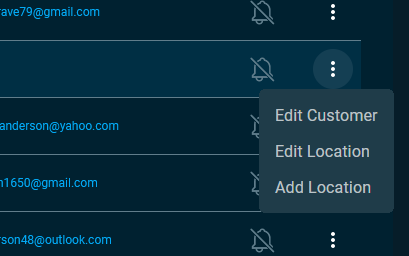
To add a new Location, click List in the left-hand menu. Then click the More Options at the right of the customer's name and select Add Location .
As you enter an address, OvrC cross-checks it with Google Maps, providing prompts for potential verified addresses close to your location. Once you see the correct address, click it and OvrC will fill in the remaining details of the address.
In the rare case where the development is so new that Google Maps does not know about it yet, you can use a Plus Code to capture the location using coordinates. Click here to learn more about Google Plus codes.
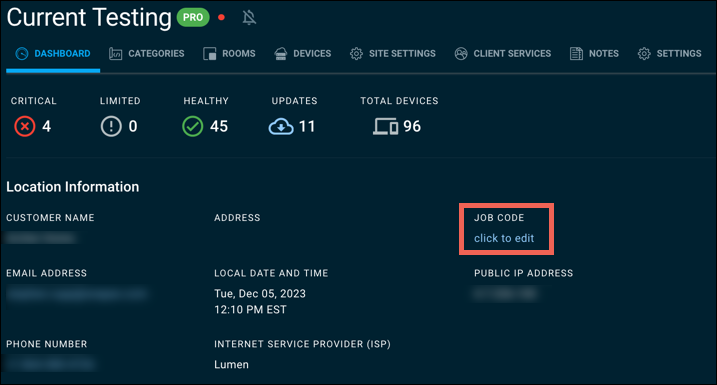
Use the JOB CODE field to identify customers. Use job codes to track customers who are on a service plan, under warranty, or in progress. Job codes help you filter your customer list and notifications with just a few keystrokes. Each customer location can have a unique job code.
Register controllers for Control4 projects. If this is a Control4 location, go to the CATEGORIES tab to START A NEW PROJECT and register the controller.
Note: Only one primary controller can be registered to a single location.